Google Ads Conversion Tracking

Server-side uploadGCLID, GBRAID, WBRAID
Enhanced conversions dataLead and Purchase

Google Ads conversion tracking only works if Google hears about the conversion. DataCops keeps every Google click on your own domain and uploads each lead and purchase from the server, with the click ID and hashed email and phone, so ad blockers and Safari stop costing you conversions.

Setup in 5 minutes
No credit card
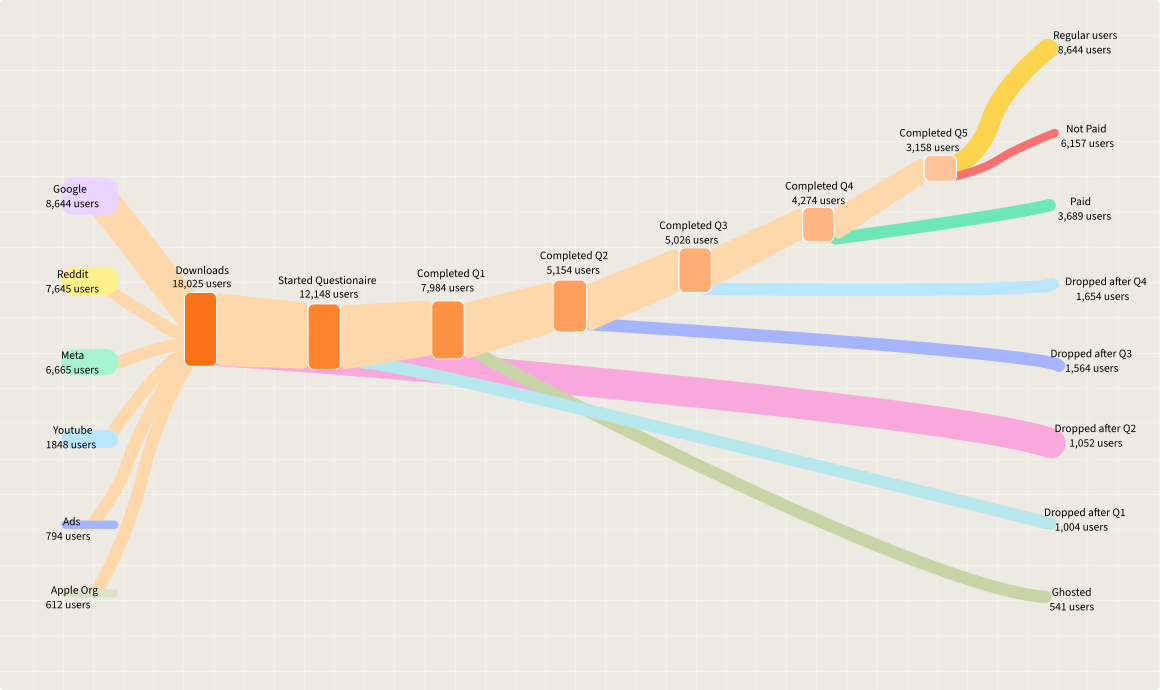
User journey from traffic sources through each step to conversion or drop-off

Trusted by agencies and brands running paid media

AffilinoBigfishClever DigitalKeetraxLegendListingLogicNumeroStormZealdBurst Digital
Definition

What is Google Ads conversion tracking?

Google Ads conversion tracking records the actions people take after clicking your ad, like a form, a booking or a purchase, and ties each one back to the click. Google reports those conversions per campaign and feeds them to Smart Bidding, so the quality of your tracking decides what Google learns to bid on.

DataCops does Google Ads conversion tracking from the server. One first-party script keeps the GCLID, GBRAID or WBRAID on your own domain, and DataCops uploads each conversion through the Google Ads API with that click ID plus hashed email and phone. No tag to be blocked, no server container to run.

DataCops uploads Google Ads conversions from the server, matched by GCLID, GBRAID, WBRAID or hashed email and phone, into Lead and Purchase actions it creates as secondary.

What Google Ads can learn from

Online store
What your ads see today Click Checkout Purchase, with value
With DataCops Click Checkout Purchase, with value
Lead generation
What your ads see today Click Form Lead
With DataCops Click Form Lead
With a CRM
What your ads see today Lead Booked Won
With DataCops Lead Booked Won
Missing conversions

Why Google Ads conversion tracking misses sales

Google Ads usually counts fewer conversions than your store or CRM. The gap has a few common causes.

Booking form
Name
Maria Lopez
Meta
Treatment
Root canal
Meta
Email
maria@mail.com
Meta

The tag is blocked

Ad blockers and privacy browsers stop the Google tag from loading. The sale happens, Google never hears of it.

yourclinic.com/gum-disease
Meta learns
This visitor may have gum disease

The click ID is lost

A redirect, a payment page or an iframe form drops ?gclid= from the URL, so the conversion cannot be tied to the click.

Events Meta received
Lead Received
Booked call Never seen
Deal won Never seen
The pixel stops at the form

The sale happens later

The call is booked or the deal closes after the visit, where no tag can see it.

Leads sent to your ads
Real lead Counted
Bot lead Counted
Real lead Counted
Your ads now look for more bots

Bots count as conversions

Fake form fills are tracked like real leads, and Smart Bidding looks for more of them.

Tag vs server

Browser tag or server upload: where Google Ads conversion tracking breaks

The Google tag counts a conversion only if it loads in the visitor's browser and still remembers the click. A server upload does not depend on either.

Google tag in the browser

Ad blockerGoogle tag never loads
Safari and iOSCookie cut short, click forgotten
Redirect or iframe form?gclid= dropped
Sale in the CRMTag is not there to see it

DataCops upload from the server

Click IDgclid, gbraid or wbraid
Email and phonehashed with SHA-256
Order IDone sale counted once
Value240.00 USD

Everything behind each Google Ads upload

Capture Background

One first-party script, served from your own domain

  • Runs first-party from datacops.yourdomain, not a blockable third-party host
  • One script, one CNAME, live in about 5 minutes, no container to host
  • Server-side collection on Cloudflare's edge, close to every visitor
  • Captures click IDs at the network level, so fbclid and gclid still reach your CAPI feed after browsers strip them
  • Recovers 15 to 25% of the sessions other setups lose

Traffic Visibility

10%
20%
30%
40%
50%
60%
70%
80%
90%
100%

First-Party Script

~78%

Blockers and ITP cut your sessions

How DataCops does Google Ads conversion tracking

Four steps from the ad click to the conversion in Google Ads.

  1. Step 01
    Saved on yourdomain.com
    fbclid from Meta Kept
    gclid from Google Ads Kept
    ttclid from TikTok Kept
    Kept for up to 90 days

    The visitor clicks your ad. DataCops keeps the GCLID, GBRAID or WBRAID on your own domain for up to 90 days.

  2. Step 02
    Stages your CRM reports
    Booked call Reported
    Showed up Reported
    Won, with value Reported

    They fill in a form or buy, on your site or later in your CRM.

  3. Step 03
    Finding the ad click again
    Won dealby email or phone
    Ad click, 23 days earlierMatched

    DataCops matches the conversion to the click by click ID, or by hashed email or phone.

  4. Step 04
    Won deal sent
    Meta Sent once
    Google Ads Sent once
    TikTok Sent once
    LinkedIn Sent once

    The conversion is uploaded to Google Ads from the server, with value and order ID when there is one.

Website conversions go out as they happen. CRM stages go out as your CRM reports them.

Matching

Click IDs and enhanced conversions

Google matches a conversion to a click in two ways: a click ID from the landing page URL, or the customer's details, hashed. DataCops sends both whenever it has them, so Google can use the best match.

GCLID

The Google Click ID. With auto-tagging on, Google adds it to your URL as ?gclid= on each click. It is the most exact match there is.

GBRAID and WBRAID

Google uses these on some iOS traffic instead of a GCLID. WBRAID shows up when a click in a Google app opens your website, GBRAID when it leads to an app. DataCops keeps and sends whichever one arrived.

Enhanced conversions

Enhanced conversions add the customer's email and phone, hashed with SHA-256, so Google can match a conversion to a signed-in user when the click ID is missing or weak. DataCops hashes these before upload and sends them with every conversion that has them. With no click ID at all, it uploads with the hashed details alone.

One upload to Google Ads

gclidCj0KCQjw...
wbraidwhen the click came from iOS
Emailsha256 · 9f86d08...
Phonesha256 · 2c26b46...
ActionDataCops - PURCHASE
Value240.00 USD

Conversion actions

Which Google Ads conversion actions get your data

When you connect Google Ads, DataCops creates two conversion actions: DataCops - LEAD and DataCops - PURCHASE. Leads and purchases go to them by default.

Created as secondary

Both actions are secondary, so they show in your reports without changing how Smart Bidding bids. Compare them with your current tracking, then decide in Google Ads whether one should become a primary goal.

Booked and showed, only when you map them

Appointment stages from a CRM go to Google Ads only once you pick a conversion action for them, so a booking is never counted as a sale.

Conversion actions

LeadDataCops - LEAD · secondary
PurchaseDataCops - PURCHASE · secondary
BookedNot sent until you map it
ShowedNot sent until you map it
Consent

A note on Google consent mode

Google consent mode tells Google whether a visitor agreed to ad cookies and ad data use. The DataCops cookie banner sets it for you: all four signals start as denied and update when the visitor chooses.

DataCops also checks consent on the server before every upload and skips declined conversions. If you already run another consent tool, keep consent mode set there.

Who handles what

Cookie bannerBuilt into DataCops
Consent mode v2Set by the DataCops banner
Declined eventsDataCops skips them
Andrew Forsyth

“15 minutes to get server-side tracking live. After 3 days failing with another app and a DIY server-side Google Tag Manager, that alone sold me. Then support jumped on a Google Meet with me on a Sunday afternoon to finish the job. Nothing else comes close.”

Andrew Forsyth
Chief Executive Officer, Zeald
After the click

Track sales that close in your CRM

Many conversions happen after the form. DataCops sends booked calls, won deals and paid invoices from HighLevel or any CRM by webhook. Read more on Google Ads offline conversions.

HighLevel

Install once for your agency and pick the sub-accounts to connect. Each stage is sent as HighLevel reports it. Cancellations, no-shows and lost deals are never sent, and you can switch any stage off.

Sends Form leadBookedShowedWon, with valuePaid invoice
Offline conversions for agencies

Salesforce, Pipedrive and any other CRM

Post the sale to your private DataCops webhook with the customer's email or phone, the value and the order ID. Your CRM can send it directly, or through Zapier, Make or n8n.

Sends Any stage you postValue and currencyOrder ID

Google Sheets and CSV

On a paid plan, upload up to 20,000 past customers or sales from a CSV and pick the platforms to send them to. Rows go out with the date you send them, so use it to warm up an ad account. For sales you add to a sheet every day, send each row through Zapier or Make to your webhook.

Sends LeadPurchaseSchedule
See Ads Warmup

Phone calls and sales

When a call ends in a booking or a sale, record it in your CRM, or post it to your webhook with the caller's phone number. DataCops matches the phone number to the ad click and sends the conversion.

Sends Matched by phone

Shopify orders

The DataCops Shopify app sends each paid order as a server-side purchase, so orders the browser missed still reach your ads.

Sends Purchase, with value
Real people only

Filter fake leads before you send

A bot that fills in your form becomes a lead your ads try to find more of. DataCops checks every visit for bots and datacenter traffic, and for VPNs and proxies if you choose. Switch on Real people only for a platform and flagged visits never reach it.

Sales that come from your CRM are sent as your CRM reports them, with no bot check, so qualify them there before you send.

How DataCops spots bots
Meta, delivery
Real people only
Bots and datacenter traffic never reach Meta. VPNs and proxies too, if you choose.
Send everything
Meta gets every visitor, bots included.
Lead from a bot Skipped
Delivery log
every event, every platform, with a reason
Live
Purchase to Google Ads
gclid + hashed email
Delivered
Lead to Google Ads
wbraid, iOS click
Delivered
Purchase to Google Ads
hashed email and phone only
Delivered
Lead to Google Ads
bot, Real people only is on
Skipped
Delivery log

See every Google Ads conversion DataCops sent

Each upload shows as delivered, held, skipped or failed, with the reason next to it. Check the conversions report in Google Ads for what Google counted.

  1. 1
    Nothing to match on
    No click ID and no email or phone means no match. DataCops attaches what it kept.
  2. 2
    The same order twice
    The order ID goes with each purchase so one order counts once.
  3. 3
    No value
    When there is no real value, none is sent, rather than a zero that tells Smart Bidding the sale was worthless.
  4. 4
    Nobody saw it fail
    Every send is listed with its status and reason.

Ways to do Google Ads conversion tracking

DataCops next to the Google tag in the browser and server-side Google Tag Manager. Checked September 2026.

DataCops
Google tag
Server-side GTM
Works when the browser tag is blocked
Uploads from the server
Runs in the browser
From your server container
Enhanced conversions data
Hashed email and phone
Server to run and pay for
None
None
Your Cloud Run or hosted server
Sales from your CRM
HighLevel, any CRM by webhook
If you build it
Bot filter before sending
Real people only switch
Good to know

Good to know before you start

Better to know now than after you connect.

Lead and Purchase by default

Booked and showed go to Google Ads once you map them to an action.

Actions start as secondary

DataCops conversion actions report without steering bidding until you make one primary.

Switch on Real people only

Bot filtering for Google Ads starts off on a new site. Turn it on from day one.

Stripe and Paddle payments come later

Checkout purchases, Shopify orders and won stages from your CRM are sent today.

Set up Google Ads conversion tracking

About 5 minutes per site.

  1. Step 1
    code

    Add the DataCops script
    One script and one DNS record, so every Google click ID is kept on your own domain.

  2. Step 2
    ads_click

    Connect Google Ads
    One sign-in. DataCops creates Lead and Purchase actions as secondary.

  3. Step 3
    fact_check

    Check the delivery log
    Watch conversions arrive, then compare with your Google Ads report.

In short

Google Ads conversion tracking with DataCops, in short

DataCops is a tool that uploads Google Ads conversions from the server, matched by GCLID, GBRAID, WBRAID or hashed email and phone, into Lead and Purchase actions it creates as secondary, with every upload logged.

How DataCops does it

1

Collect on your own domain

One script and one DNS record collect on your own subdomain, so the Google tag is not the only thing standing between a click and a conversion. With your DNS on Cloudflare, the free Worker reads the click ID at the edge before the page loads. gclid, wbraid and gbraid are kept on the server for up to 90 days, and a signed server-set cookie lasts up to 400 days where enabled.

2

Upload as click conversions

Conversions go to Google Ads through the Google Ads API with the click ID and hashed email, phone and address, plus the order ID and a value when it is above zero. Events marked as declined are skipped.

3

Secondary actions, so bidding stays yours

DataCops creates DataCops - LEAD and DataCops - PURCHASE as secondary. It never sets a primary goal; you decide when to make one primary. Booked and showed go to a conversion action you map.

4

Add the sale after the form

HighLevel natively, HubSpot through one stage, any CRM by private webhook, Shopify through the DataCops Shopify app. Google ignores offline uploads more than 90 days after the click, so each stage is sent when it happens.

5

Real people only, and refund evidence

Every visit gets a bot verdict against 360+ billion IPs and 350+ monitoring points, with a per-platform Real people only switch, off by default. Every form email is checked for disposable providers, domains with no mail server and an email risk score. On the Organization plan, the fraud refund report exports bot-flagged clicks for a Google refund request that Google decides.

6

Warm up, count once, and see every send

Ads Warmup sends up to 20,000 past customers as click conversions, dated when you send, and Google credits only people who clicked a Google ad. A purchase with an order ID is counted once, and a delivery log row shows each send with its reason.

Best for: advertisers on Google Ads who want conversions that survive blockers and Safari, and lead gen, clinics, home services, B2B and Shopify accounts whose sales close after the click.

Free to start. See pricing.

When not to use DataCops

You keep your own consent banner

Set up Consent Mode in your own banner and Google tag. With the DataCops banner, Google Consent Mode v2 is on by default. DataCops does not make you compliant; your own advisers decide that.

Google tag and Tag Gateway already cover you

If Google Ads is your only channel and your traffic is clean, the Google tag with Google Tag Gateway and enhanced conversions may be enough. See Google Tag Gateway alternatives.

You need the Data Manager API

DataCops uploads through the Google Ads API today. Google asks new API integrations since 15 June 2026 to use the Data Manager API.

You want DataCops to change your bidding

It does not set primary goals. See Target CPA vs Maximize Conversions.

FAQ

Google Ads conversion tracking records what people do after they click your ad, such as a lead form, a booking or a purchase, and ties it back to the click. Google uses those conversions to report which campaigns work and to train Smart Bidding.

Let Google Ads count every real conversion

Server-side uploads with click IDs and hashed email, logged per send.

Setup in 5 minutes. No credit card.

Live traffic quality

Updated just now

Visits · last 24h

487
Real users
35873.5%
Bots · auto-filtered
12926.5%

Without filtering, 26.5% of your reported traffic is bot noise inflating dashboards and draining ad spend.

Don't trust your analytics!

Make confident, data-driven decisions withactionable ad spend insights.

Setup in 2 minutes
No credit card